
Enabling Multi-Factor Authentication (MFA) via the Google Authenticator extension in Plesk enhances server security. However, if the server clock drifts out of sync, Google Authenticator will reject every valid verification code, locking you out of the Plesk Panel.
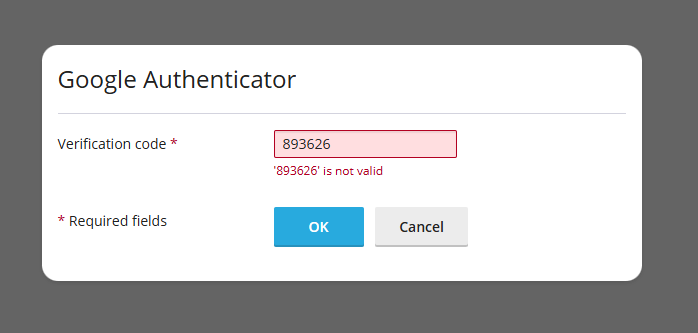
Here is a step-by-step guide to disabling the extension via SSH, fixing the underlying time synchronization issue, and safely re-enabling MFA.
1. Disable the Google Authenticator Extension via SSH
Since web panel access is blocked, you must disable the extension from the command line.
- Connect to the server via SSH.
Run the following command to disable the extension:
plesk bin extension --disable google-authenticator
You can now log back into the Plesk Control Panel without an MFA prompt.
2. Identify the Root Cause: Time Drift
Google Authenticator uses Time-based One-Time Passwords (TOTP). If the server clock and the authenticator device are out of sync by more than a few seconds, codes generated by your app will be flagged as invalid. To investigate:
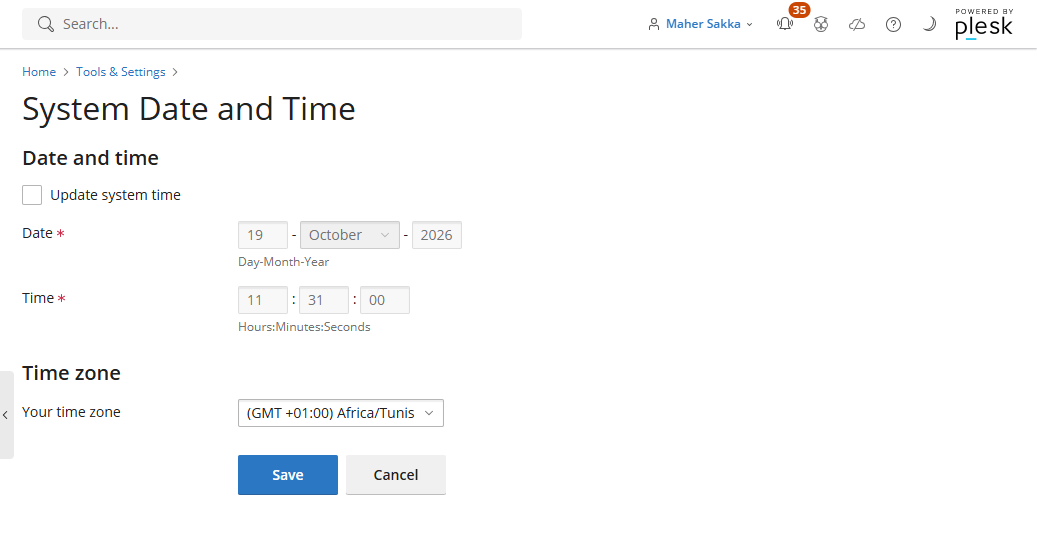
- Log into Plesk and navigate to the System Date and Time page (`/cp/system-time`).
Check the displayed system time against accurate local time.
- Verify the time via CLI by running:
date
Diagnosis: The time displayed on the System Date and Time page was incorrect, even though automatic time synchronization was enabled. The server clock was approximately 2 minutes behind, causing all generated TOTP tokens to fail validation.
3. Fix Time Synchronization using Chrony
To resolve the drift, accurate network time synchronization must be configured.
systemd-timesyncdwas not present on the system.- Standard NTP services were unsupported in this server environment.

Solution
Install Chrony, a flexible NTP implementation, and force an immediate time step update:
- Install Chrony (adjust for your Linux distribution):
- Ubuntu/Debian:
sudo apt install chrony - CentOS/RHEL/AlmaLinux:
sudo dnf install chrony
- Ubuntu/Debian:
- Force immediate clock synchronization:
sudo chronyc -a makestep
This forces the chronyd daemon to immediately correct the system clock offset rather than gradually adjusting it over time.
4. Test and Re-enable Google Authenticator
Once system time is accurate, test and restore the MFA extension:
- Navigate to the Google Authenticator page in Plesk (
/modules/google-authenticator/). - Run a verification test using a newly generated code from your phone to confirm it passes.
Re-enable the extension via SSH:
plesk bin extension --enable google-authenticator
Conclusion
If Google Authenticator or any TOTP-based 2FA fails unexpectedly across all devices, check server time drift before attempting to regenerate keys or reinstall packages. A simple time offset is frequently the culprit.